Setting up a Jira and ServiceNow sync: walkthrough and use cases

Connecting ServiceNow and Jira is rarely the hard part. The hard part is deciding what should move, in which direction, and what should come back. This page helps you decide that first. It starts with five common situations, shows how three real organizations set theirs up, and then walks through building a sync in ZigiOps, step by step. For permissions and field-level parameters, see the ServiceNow connector docs and the Jira connector docs. For the full parameter-level guide, see the Jira ServiceNow Integration Guide in the docs.
Start here: which situation is yours?
| Your situation | What moves | Direction | Real example below |
|---|---|---|---|
| The service desk hands work to engineering | Incidents, cases or tasks become Jira issues; status and comments come back | ServiceNow to Jira, updates both ways | COCC |
| Engineering work must be visible in ServiceNow | Jira issues become ServiceNow records such as enhancements or change requests | Jira to ServiceNow, updates both ways | The healthcare company |
| You are a provider and your clients use their own tools | Client tickets and your ServiceNow cases, one workflow per client | Two-way, started by a queue | Red River |
| Releases need change approval | A Jira release becomes a change request; the approval returns | Jira to ServiceNow, approval back | Use cases 5 and 6 |
| Developers need reference data | CMDB records appear in Jira | ServiceNow to Jira | Use case 10 |
Four questions that decide your setup
What should start a sync? A new record, a change of state, or a record entering a queue. Filters and trigger conditions decide this. Examples: only priority 1 and 2 incidents, only cases in an "Engineering Review" queue, only Jira issues from one project. Start narrow and widen later.
Which side owns each field? A field that both teams edit freely causes arguments. Decide per field who owns it, and map the other side accordingly. Typically the service desk owns the customer-facing fields, and engineering owns the status of the work.
What must come back? Status changes, comments and closure details. For ServiceNow that includes resolution fields, because an incident cannot be resolved without a resolution code and note.
What must never cross? Internal notes, customer data and anything the other side should not see. Each side maps what it sends and what it receives, so leave sensitive fields out of the mapping.
Three real setups
Red River: an MSP with its clients' tools around its ServiceNow. Red River is a managed service provider serving federal agencies and large enterprises. Its own ServiceNow instance is the system of record, but its clients work elsewhere: Jira for development, Zendesk for support, Freshservice for internal IT. Escalated tickets arrived without context, and updates were copied by hand. For Jira, Red River uses a co-managed queue. When a ServiceNow case enters a specific queue, such as "Engineering Review", ZigiOps creates a task in the client's Jira project. Short description, priority, status (with mapping logic), assignment group, contact details, comments and custom fields such as account, case type, category, contract and location sync both ways. Attachments are optional. If the work is resolved or downgraded in Jira, ZigiOps can reopen the case, change its status or move it to another queue, so SLA clocks and reporting stay accurate. The same pattern connects ServiceNow with Freshservice, Zendesk and other ServiceNow instances. What to borrow: use a queue as the trigger, and decide how work returns to your side. Read the full Red River case study.
COCC: from customer requests to DevOps and back. COCC manages customer service tasks in ServiceNow and DevOps projects and issues in Jira, and the two were not connected. ZigiOps collects the customer service tasks from ServiceNow and creates Jira issues. Changes sync in both directions. Filtering and mapping let COCC choose in detail which tasks become Jira issues and what information transfers. When the task is closed, the customer is notified that the issue is resolved. What to borrow: decide which tasks deserve a Jira issue before you map any fields. Read the full COCC case study.
A multinational healthcare company: two workflows, two directions. The customer service team uses ServiceNow and the DevOps team uses Jira. The company built two workflows. In the first, ServiceNow enhancement records that meet set criteria create Epic-type issues in Jira, carrying only the information DevOps needs. In the second, Jira issues that match filters create Enhancement Processing records in ServiceNow, and updates and closures flow both ways. What to borrow: two simple one-purpose workflows are easier to run than one workflow that does everything. Read the full healthcare case study.
Before you start
A little preparation saves most of the rework. Have these ready before you open ZigiOps:
- A dedicated integration user in ServiceNow and in Jira. In ServiceNow it needs read, create and write access to the entity you will sync. The docs guide lists the permissions in detail.
- A test environment: a ServiceNow developer or non-production instance, and a Jira test project. You can connect any ServiceNow instance, including a developer instance, in a free trial.
- The entity pair you will start with. For a first sync, ServiceNow incidents to Jira tasks.
- A short list of which side owns each field, so nobody edits the same field in two places.
- Your status and priority mapping on paper, using the worked example below.
- A person who will watch the Dashboard and the Troubleshooting area during the first week.
The six steps
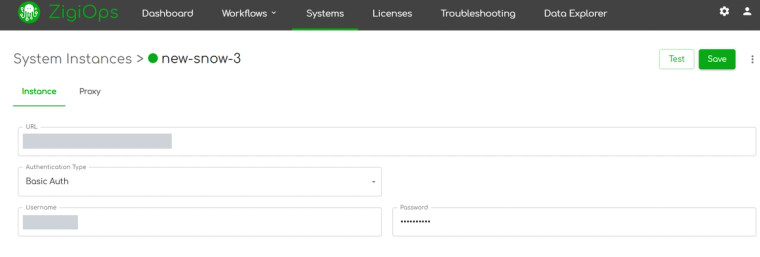
Step 1: connect ServiceNow and Jira. In ZigiOps, open Systems and choose Add System. Add each system in turn. Jira Cloud connects with OAuth 2.0: you sign in with your Atlassian account and approve the ZigiWave app. Jira Data Center and Server connect with Basic authentication. For ServiceNow, use a dedicated integration user with read, create and write access to the entity you will sync. ZigiOps checks each connection when you save it.
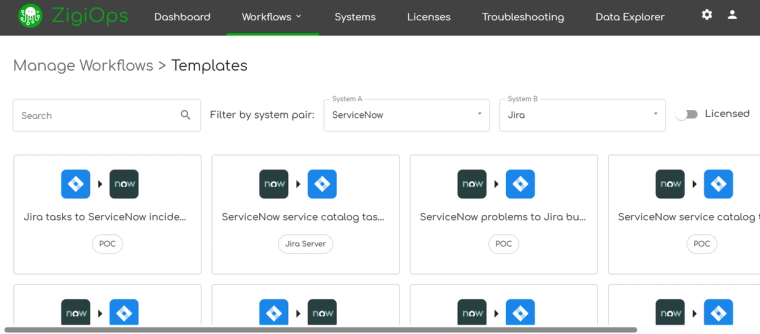
Step 2: choose a workflow. Open Workflows, choose Add Workflow, then Template. Templates cover the common starting points: ServiceNow incidents to Jira tasks, ServiceNow problems to Jira bugs, ServiceNow service catalog tasks to Jira stories, and two-way setups. You can also start with the Workflow Wizard, build a Custom workflow, or Import one. For a first sync, start with incidents to tasks.
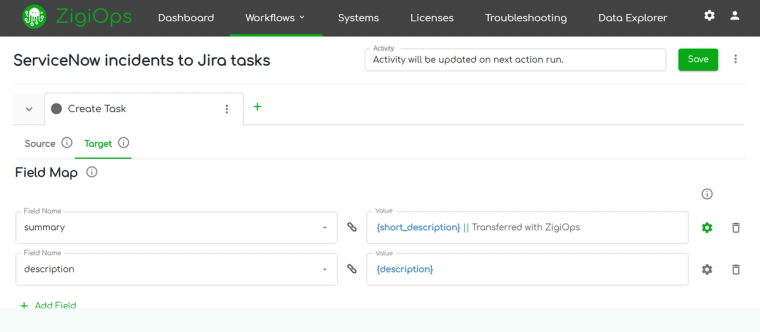
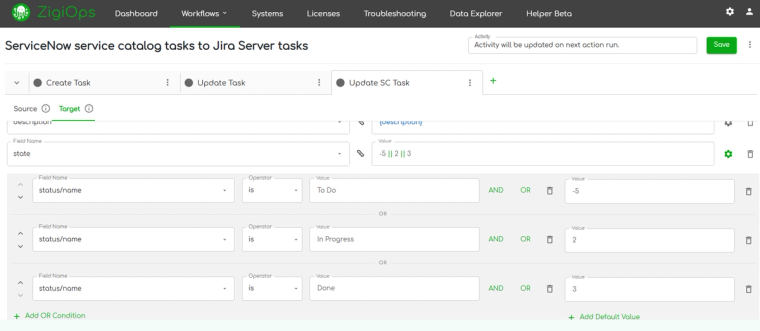
Step 3: map fields and statuses. Templates arrive with the core fields mapped: summary, description, priority, status, comments and attachments. Change anything from the dropdowns. Statuses need a decision. ServiceNow stores incident state as numeric codes, and Jira uses named statuses, so you map them with conditions, for example: if the ServiceNow state is 2, set the Jira status to In Progress. Conditions can be stacked on a field. Mappings are configured separately for each direction.
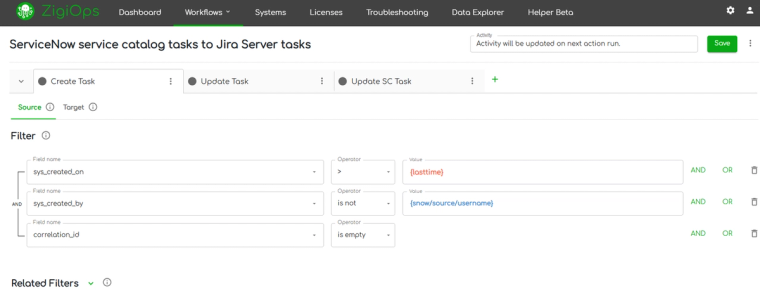
Step 4: set direction and triggers. Choose one direction or both. Choose how changes are detected: a polling interval, or event-based. The interval can be as short as 1 second. Add filters so only the records you want cross over, for example ServiceNow incidents with priority 1 or 2, or Jira issues from one project with one label.
Step 5: test before you go live. Run the safe test mode. It validates your mappings and trigger conditions on real data before anything is written. Then create a test incident and check three things. The Jira task appears with the incident number. The ServiceNow incident carries a correlation reference back to the Jira task. A comment added on either side shows up on the other.
Step 6: activate and watch. Activate the workflow. The Dashboard shows workflow activity and execution health: executions, errors, and records collected and delivered. The Troubleshooting area lists what was extracted from the source and loaded into the target, with the details of any error.
Worked example: mapping status and priority
Status and priority are where first syncs most often go wrong, because the two tools model them differently. These examples follow the ZigiOps documentation.
Status. ServiceNow stores incident state as a number, and Jira uses named statuses. A simple mapping from ServiceNow to Jira looks like this. Each direction is mapped separately, so the return mapping from Jira to ServiceNow is a second table that you fill in on purpose.
| ServiceNow state | Jira status |
|---|---|
| 1 | To Do |
| 2 | In Progress |
| 6 | Done |
Priority. ServiceNow calculates priority from impact and urgency. Jira uses a flat list, so mapping the priority number alone can misstate business impact. The recommended approach uses both source fields together.
| ServiceNow priority | Impact | Urgency | Jira priority |
|---|---|---|---|
| 1 - Critical | 1 - High | 1 - High | Highest |
| 2 - High | 1 - High | 2 - Medium | High |
| 2 - High | 2 - Medium | 1 - High | High |
| 3 - Moderate | 2 - Medium | 2 - Medium | Medium |
| 4 - Low | 3 - Low | Any | Low |
Write your own versions of both tables before you configure anything, and adjust them to your team's definitions. Then check them in the safe test mode.
Five things that break a first sync
Status against state. Mapping Jira's Done straight onto a ServiceNow state code produces invalid transitions. Map each status explicitly, in both directions.
Mandatory fields on resolve. ServiceNow requires a resolution code and resolution note before it will resolve an incident, and Jira's Done has no equivalent. Add a condition that sends both values when the Jira status reaches Done.
Priority. ServiceNow calculates priority from impact and urgency, while Jira uses a flat list. A direct numeric-to-text mapping can misstate business impact, so map priority using both ServiceNow fields together.
Update loops. In a two-way sync, a change written by the integration must not trigger another sync. ZigiOps separates changes made by users from changes it wrote itself, so this needs no configuration.
Changed schemas. Fields get renamed and new mandatory fields appear. ZigiOps reads each system's schema dynamically, so review the mapping when a field changes instead of waiting for a failure.
Fifteen use cases
| # | Use case | Direction | What it connects |
|---|---|---|---|
| 1 | Critical incident escalation for SLA tracking | Jira to ServiceNow, status back | Jira issue and incident |
| 2 | L1 and L2 support split across platforms | ServiceNow to Jira, updates back | Incident and Jira issue |
| 3 | Incident to bug and problem management | ServiceNow to Jira | Problem and Jira bug |
| 4 | Security operations and client-facing incidents | Jira Service Management to client ServiceNow, two-way | Alert and incident |
| 5 | Change and release coordination | Jira to ServiceNow, approval back | Jira release and change request |
| 6 | Change approvals in regulated environments | Jira to ServiceNow, approval back | Release and change request, with conditional mapping of mandatory fields |
| 7 | Service catalog request to development task | ServiceNow to Jira, progress back | Requested item or catalog task and Jira story |
| 8 | Selective sync by record type | ServiceNow to Jira, filtered | Problems and tagged catalog tasks only |
| 9 | Agile delivery with ITSM oversight | ServiceNow to Jira, progress back | Enhancement request and Jira story |
| 10 | CMDB and application data for impact analysis | ServiceNow to Jira | CMDB records into Jira |
| 11 | Sprint progress reporting to ServiceNow | Jira to ServiceNow | Sprint and story status |
| 12 | Partner and vendor collaboration | Two-way, selective | Incident and the vendor's Jira issue |
| 13 | Multi-instance ITSM routing | Several workflows | Several ServiceNow instances and Jira projects |
| 14 | MSP multi-client coordination | One workflow per client | Client tickets and the MSP's Jira |
| 15 | Post-acquisition collaboration | Two-way on shared projects | Requirement or ticket and story |
See it on your own instances
Start a free trial or book a demo. For the product overview, see the ServiceNow–Jira integration page.
Frequently asked questions
Which template should I start with?
Start with ServiceNow incidents to Jira tasks. It covers the most common handoff and uses every concept in this walkthrough: field mapping, status translation, comments and attachments.
Why didn't my Jira issue resolve the ServiceNow incident?
ServiceNow requires a resolution code and resolution note before an incident can be resolved. Add a condition that sends both when the Jira status reaches Done.
Can I start one-way and add the other direction later?
Yes. Direction is set per workflow. Start with one direction, check the results in test mode, then enable two-way.